Screen Builder. App screens from ready-made parts.
Our screen builder lets you design an app screen by clicking pieces into place. Click a navigation bar, a photo card or a button and it lands, already styled, on a phone, tablet or desktop screen. Set your colors once, then download the screen as a PNG.
How a screen gets built
Five moves, filmed in the real tool while building a vegetable-box app for a small farm. Pick one to watch it, or leave them to play through in order.
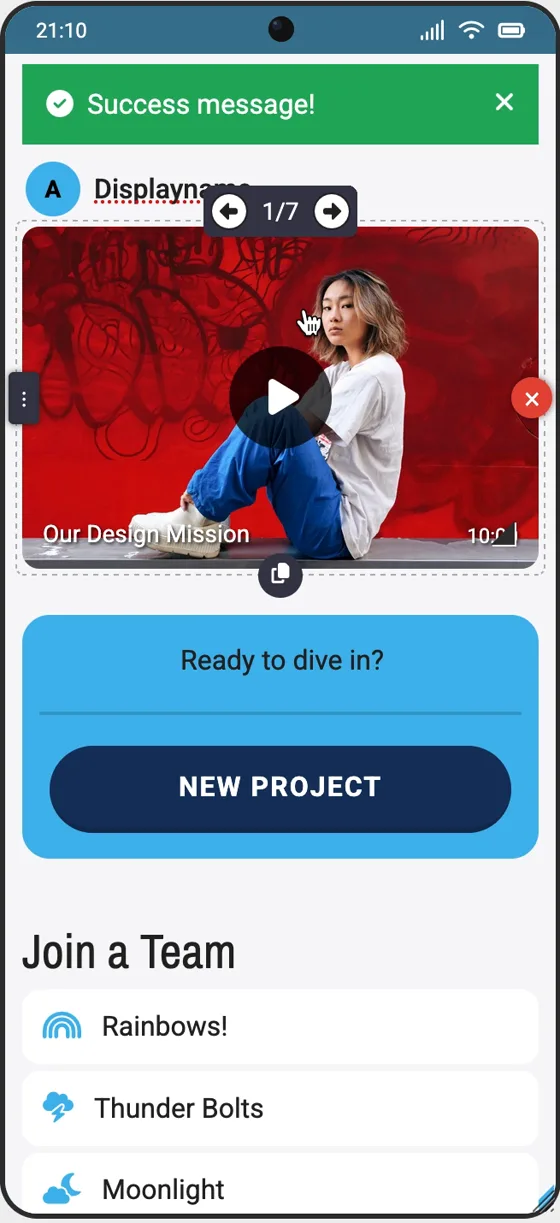
To rearrange, hover over anything on a screen and drag its ⋮ handle; the red × deletes it. Screens come in twenty preset sizes, from a Galaxy Z Flip phone up to an iPad Pro and a full HD desktop, and layouts are responsive by default: parts stretch to the screen and Columns wrap when it narrows.
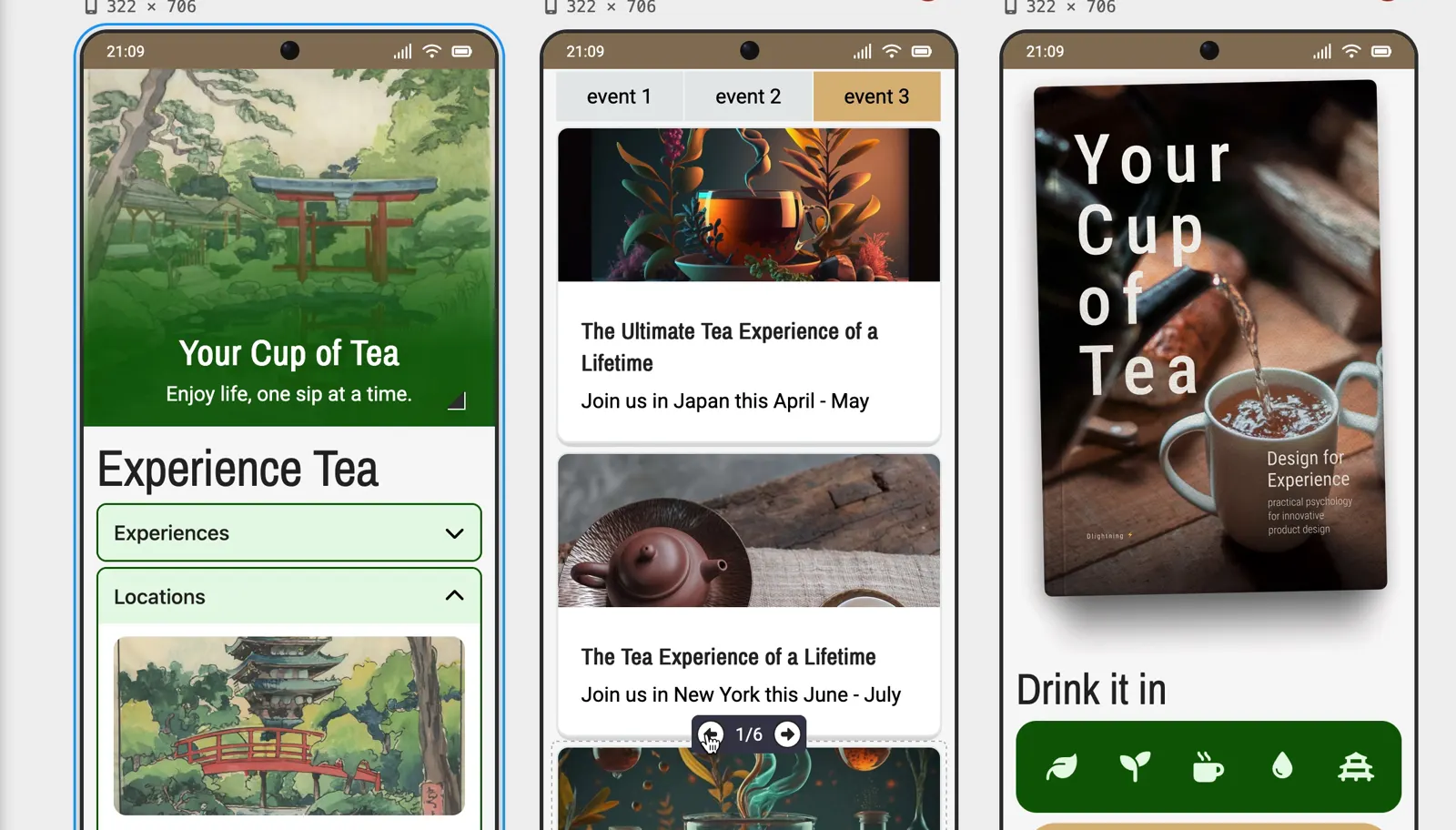
Responsive by default
Screens aren't stuck at phone size. Drag a screen's corner and the parts rearrange themselves.
The same layout works on a 320-pixel phone all the way up to a full HD desktop, with no second version to build.
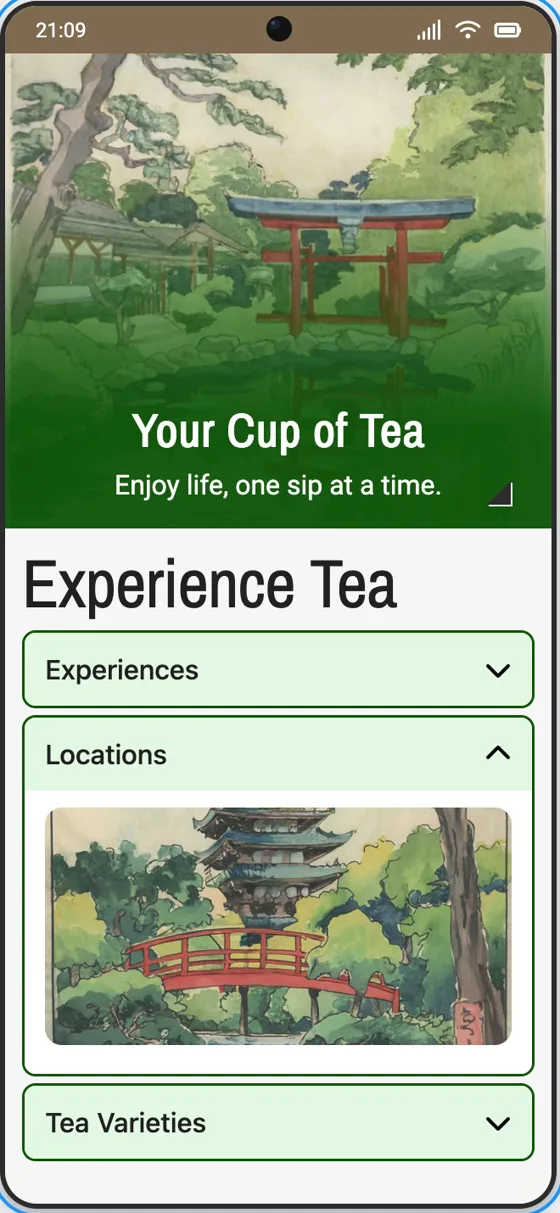
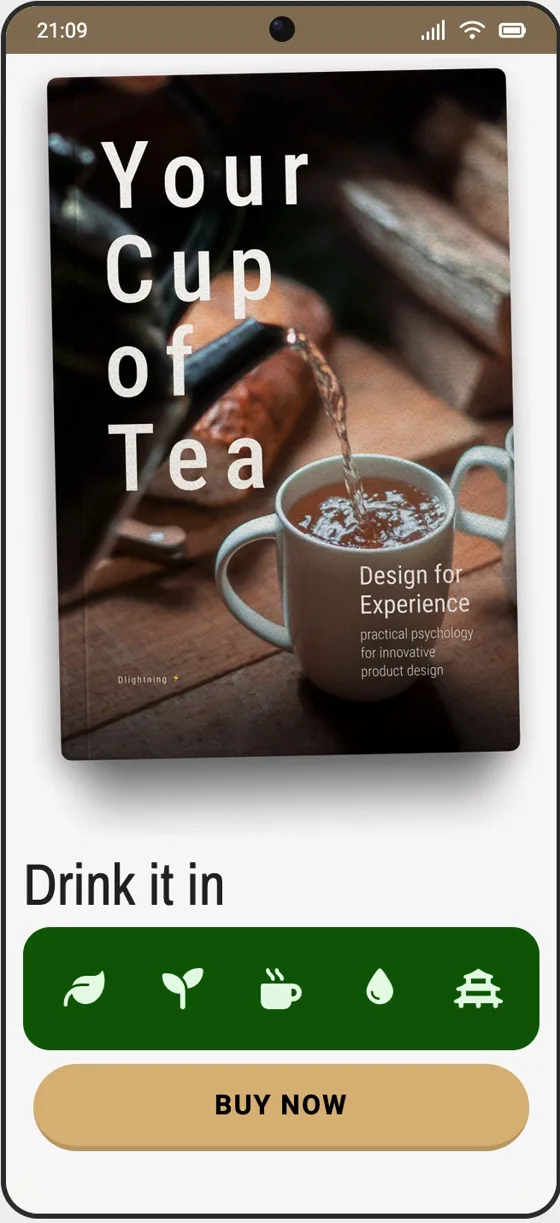
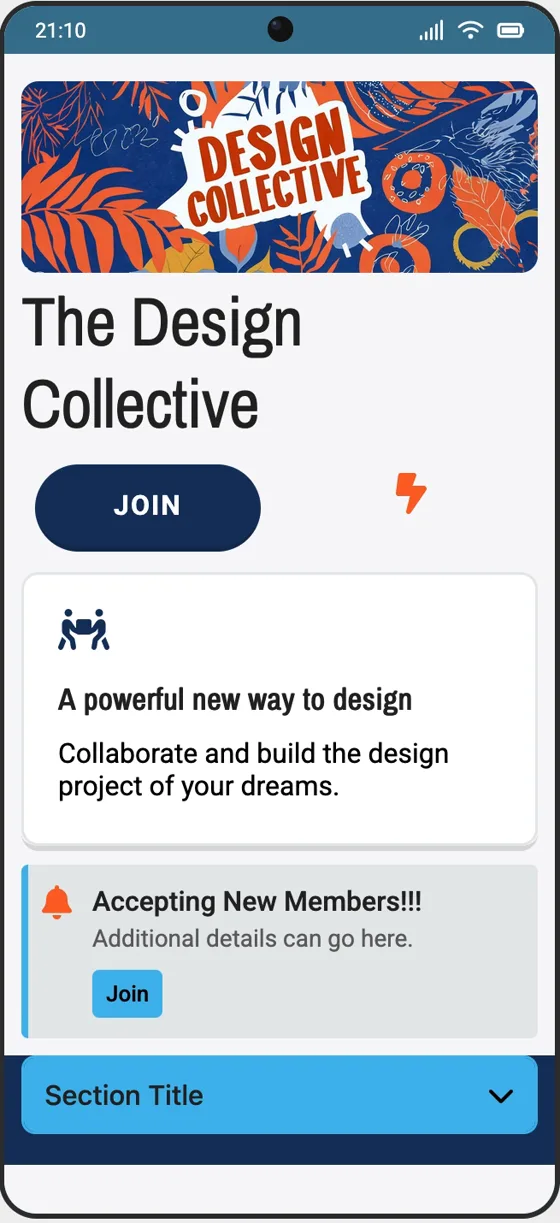
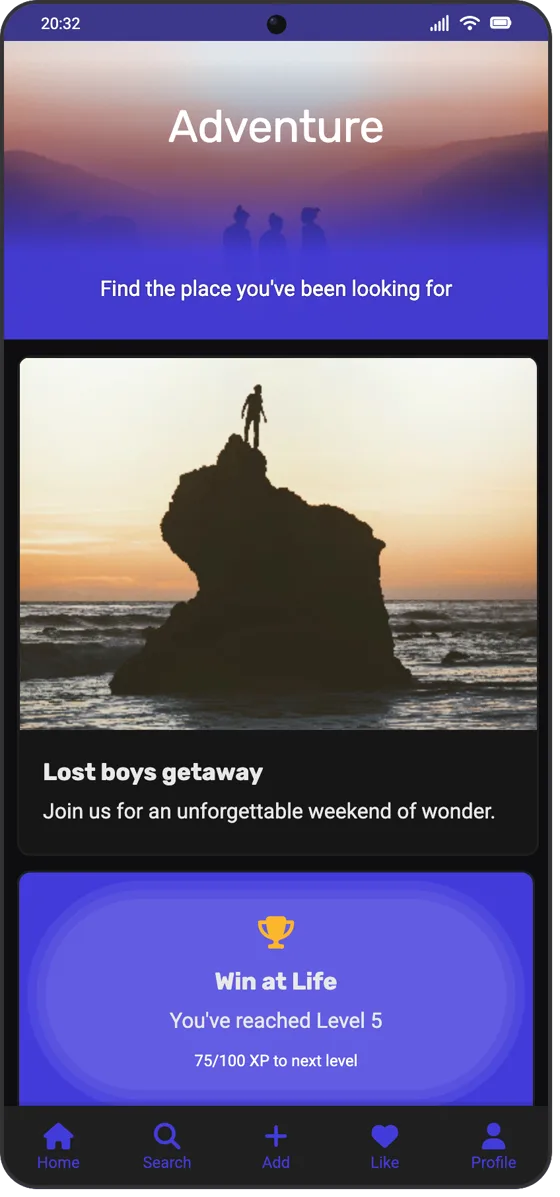
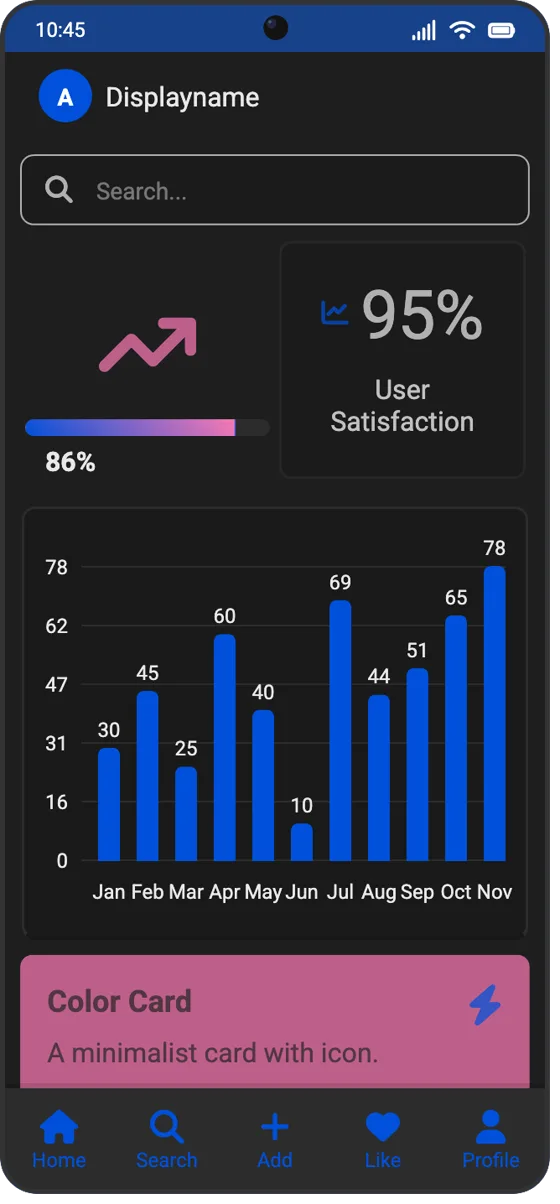
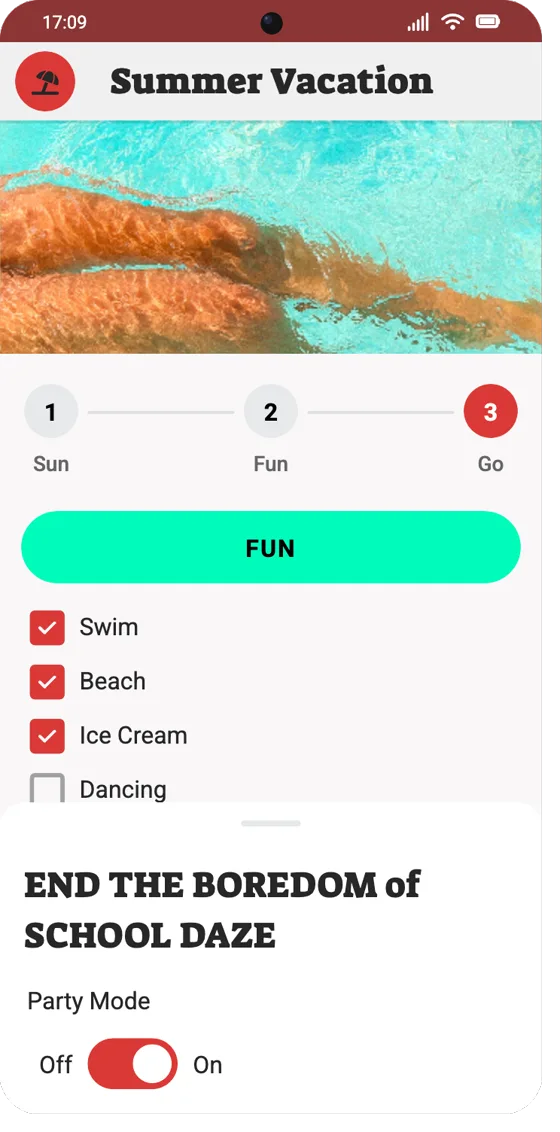
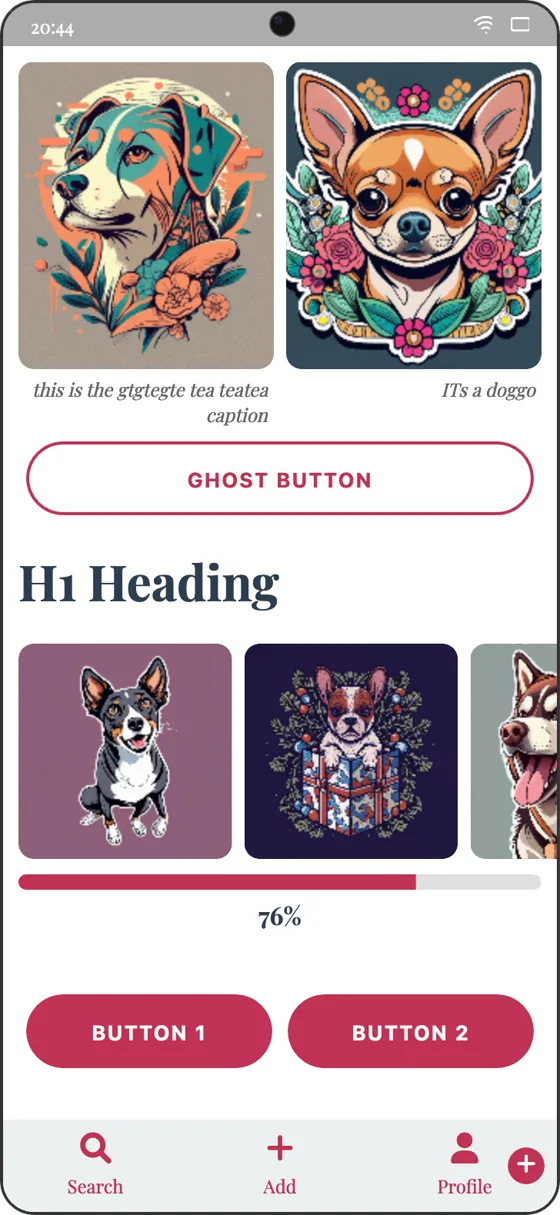
Made in Screen Builder
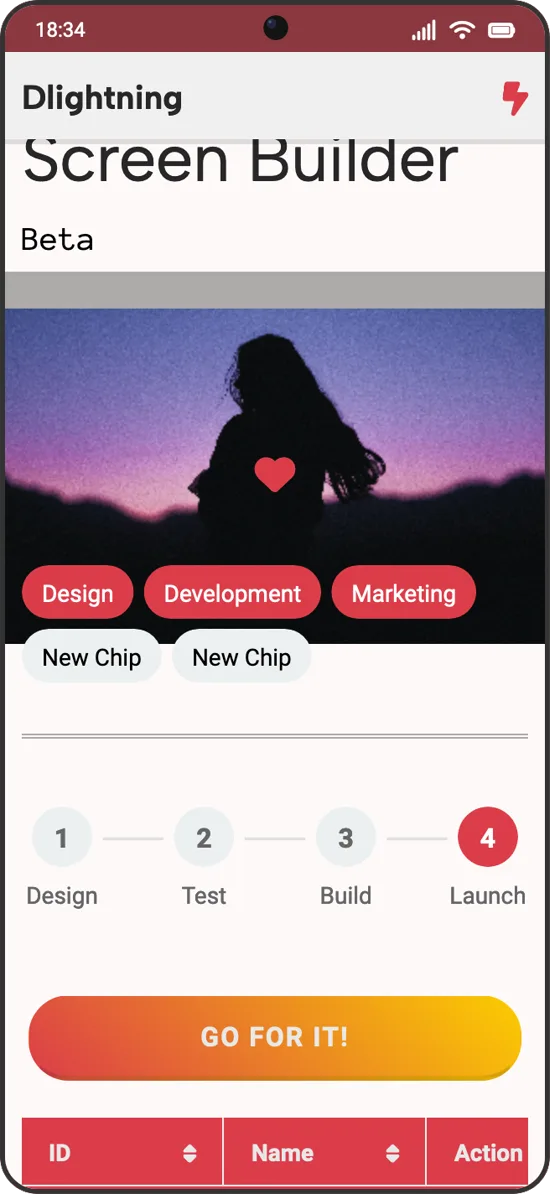
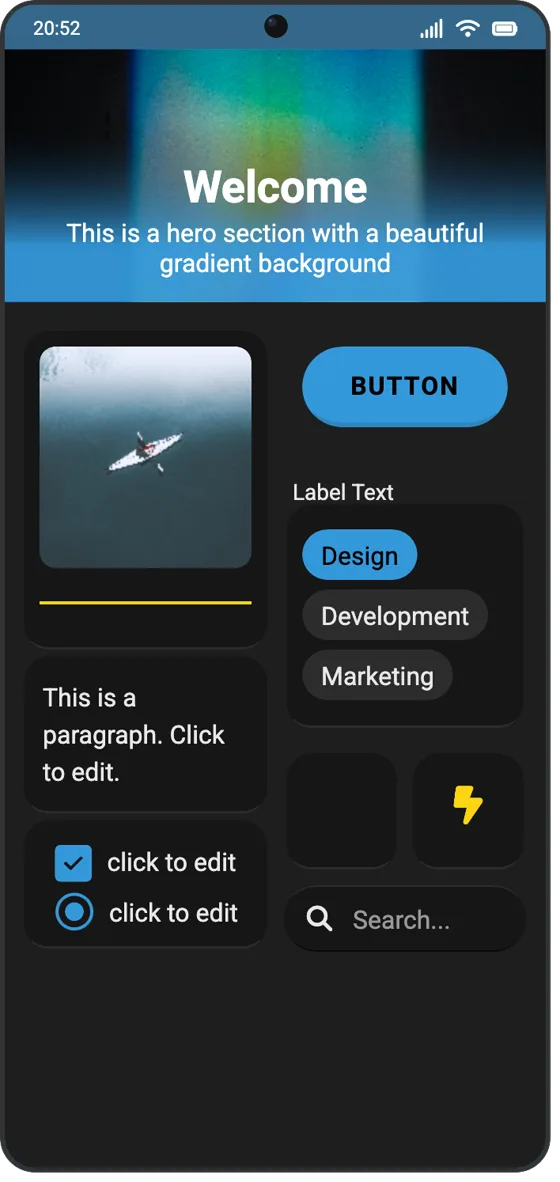
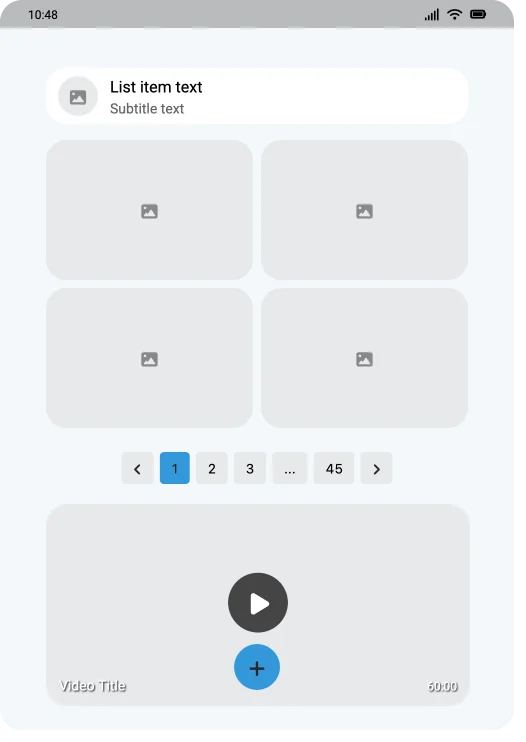
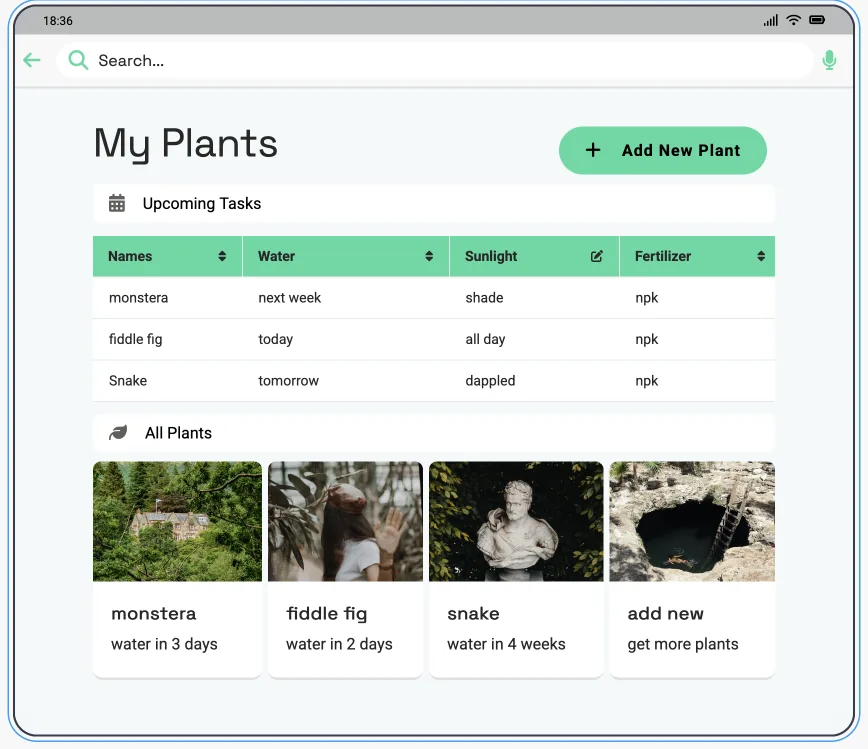
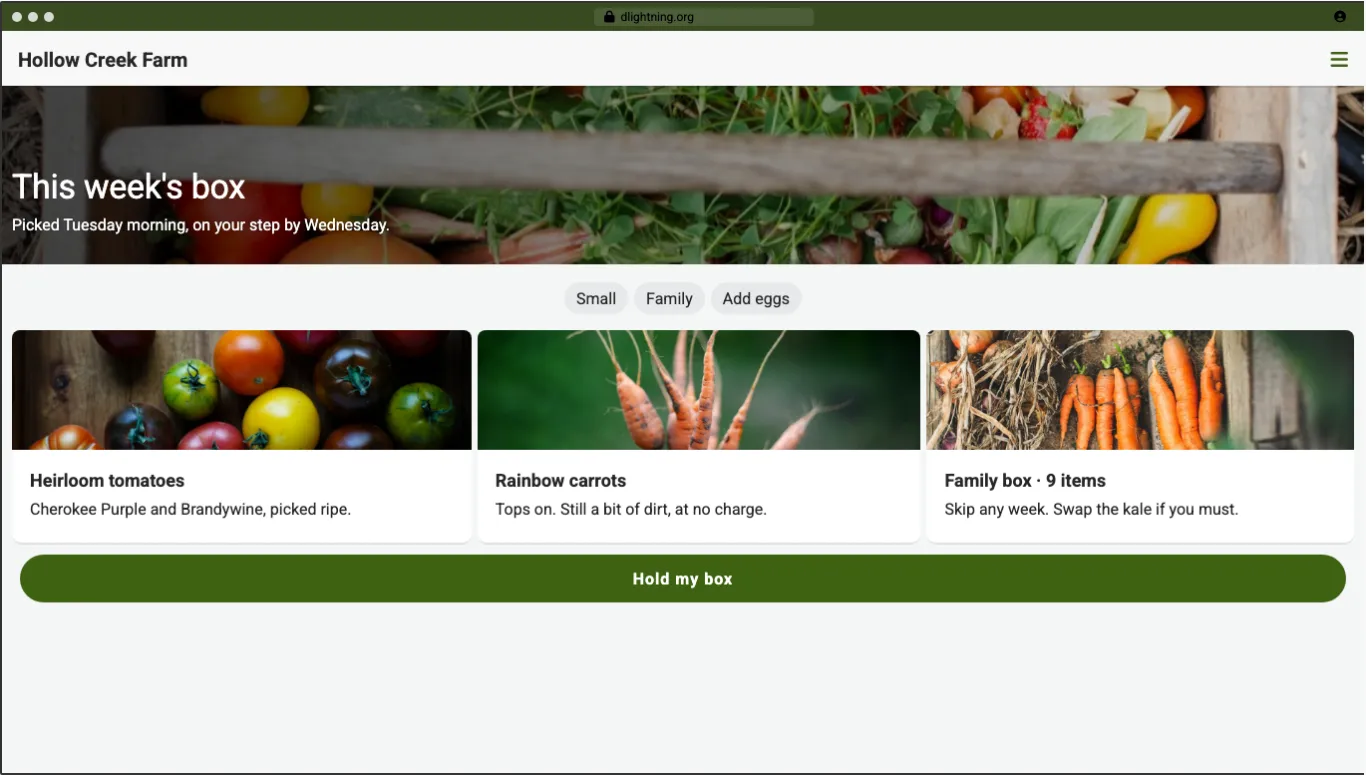
Screens built from the same sidebar. The theme and layout do the heavy lifting.
Scroll sidewaysSwipe
What's in the sidebar
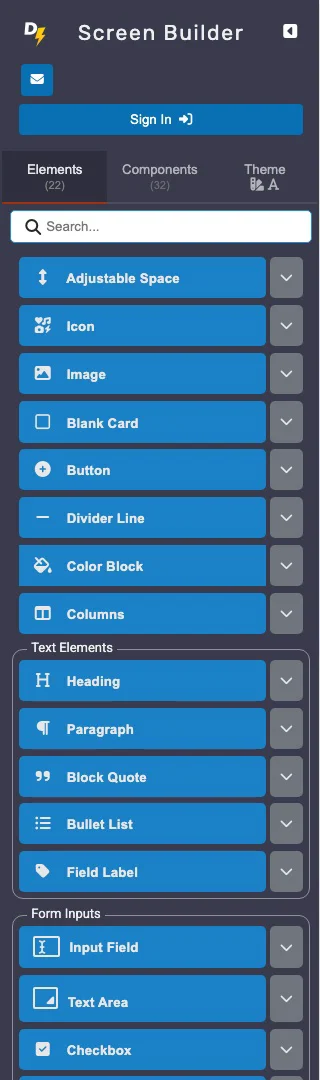
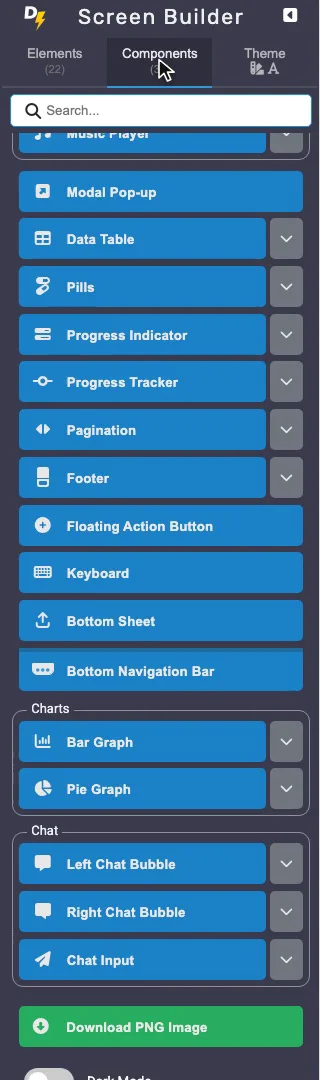
More than fifty parts, most with several layouts each. These are the names you'll find in the tool, grouped the way an app is usually put together.
- Building blocks
- Adjustable Space, Icon, Image, Button, Divider Line, Blank Card, Color Block, Columns
- Text
- Heading (H1 to H6), Paragraph, Block Quote, Bullet List, Field Label
- Forms
- Input Field, Text Area, Checkbox, Radio Button, Form Group, Dropdown, Toggle Switch, Range Slider, Date Picker, File Upload
- Navigation
- Top Navigation Bar, Sidebar, Bottom Navigation Bar, Tabs, Search Bar, Pagination, Floating Action Button, Bottom Sheet, Footer
- Content
- Hero Section, Image Card, Text Card, List Item, Comparison Card, Accordion, Avatar, Pills
- Feedback
- Alert, Notification, Modal Pop-up, Progress Indicator, Progress Tracker
- Media and data
- Image Gallery, Video, Music Player, Data Table, Bar Graph, Pie Graph
- Chat
- Left Chat Bubble, Right Chat Bubble, Chat Input, Keyboard
- Theme
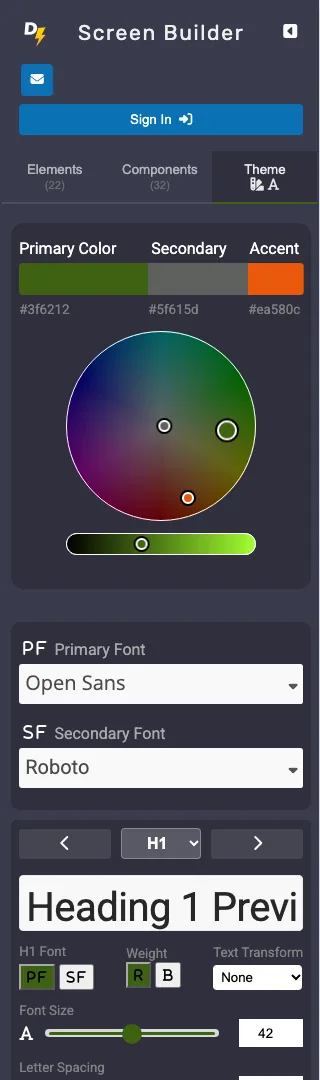
- Primary, secondary and accent colors, two fonts, size and weight for each heading level, corner radius, the gap between parts, padding inside each screen, and dark mode. Every setting applies to every screen at once.
Where it fits
Screen Builder is for the first version of a screen, when the question is whether it works at all. Here's how it compares with the two things people usually reach for.
| Task | Screen Builder | A design tool like Figma | A paper sketch |
|---|---|---|---|
| Getting started | Open the page, click a button | Sign up, then start a file | Find a pen |
| The first screen | Assembled from ready parts | Drawn in frames, or from a UI kit | Drawn by hand |
| Design skills needed | None; parts arrive styled | Some, to make it look right | None, and it shows |
| Changing the brand color | Once; every screen follows | Through styles you set up first | Redraw every screen |
| Device sizes | Twenty presets, phone to desktop | Any frame size | Whatever fits the page |
| Responsive layout | By default; parts reflow to fit | With auto layout you set up | No |
| Freeform drawing | No, components only | Yes | Yes |
| Clickable prototype | No | Yes | No |
| What you hand over | PNG images | PNG, SVG, PDF and specs | A photo of the page |
| Cost | Free, or $6 a month for Pro | Free tier, then paid seats | The paper |
Free until you need more
Start without an account. Sign in when you want to save your work, and go Pro only when you hit a limit.
Free
$0
No card, no trial clock.
- Two screens without an account
- A third screen and two saved projects with a free account (Google or email)
- Up to 28 components per project
- Every theme setting and PNG download
Pro
$6a month
Or $60 for a year, which works out to $5 a month.
- Unlimited projects and screens
- No cap on components per project
- Your images saved with your projects
- Early access to new components
Questions people ask
Something not covered? Ask us directly.
What is a screen builder?
A screen builder assembles an app screen from ready-made parts instead of drawn shapes. You place a navigation bar, a heading, a form and a card on a device-sized frame and see the layout before anyone writes code.
Is it only for mobile screens?
No. Screens come in twenty preset sizes, from phones through tablets to a full HD desktop, and layouts are responsive by default. Every part stretches to the width of its screen, and Columns wrap onto a new row when a screen gets too narrow, so one set of parts works at every size.
Do I need design skills?
No. Every component arrives already styled, and one theme sets the colors and fonts for every screen, so the result looks consistent without design training. The worst you can do is pick a loud color, and the Theme tab takes that back in one drag.
Is Screen Builder free?
Yes. You can build two screens without an account. A free account adds a third screen, two saved projects and up to 28 components per project. Pro, at $6 a month or $60 a year, removes the limits.
Do I need to install anything?
No. Screen Builder runs in a desktop web browser. You sign in, with Google or an email address, only when you want to save projects.
How do I export my screens?
Choose Download PNG Image at the bottom of the sidebar. Each screen saves as a picture you can drop into a deck, a ticket or a message.
Why can't I draw shapes?
Drawing tools are left out on purpose. With no rectangle tool and no per-element letter spacing, the conversation stays on whether the right content is on the screen in the right order. Project-wide settings in the Theme tab handle the look: two fonts, three colors, corner radius, the gap between parts and the padding inside each screen.
Does it replace Figma?
No. Screen Builder is quicker for the first layout, when the question is whether a screen works at all. Pixel-level drawing, clickable prototypes and a shared design system belong in Figma.
Does it produce code?
No. It produces pictures of screens for planning and discussion. That's deliberate: a picture invites feedback, where code looks like a commitment to ship. A developer builds the real thing from them, and is usually glad to get a picture instead of a paragraph.
Your first screen is two clicks away.
No account for the first two screens, nothing to install. Open it, click a navigation bar, and keep going.
Open Screen Builder